
CastX guide
How to Mirror an iPhone to Chromecast
Mirror your iPhone screen to Chromecast with CastX, including setup, iOS Screen Broadcast, common connection fixes, and protected-content limits.
Reviewed September 26, 2026
Quick answer
Chromecast does not accept AirPlay screen mirroring directly. CastX connects to your Chromecast on the local network and uses iOS Screen Broadcast to send your iPhone screen to the TV.
Step by step
Put both devices on the same Wi-Fi
Connect your iPhone and Chromecast or Chromecast-enabled TV to the same local network. Avoid guest Wi-Fi, which often blocks devices from finding each other.
Open Mirroring for Chromecast: CastX
Install the mirroring app, allow Local Network access when iOS asks, and choose your Chromecast from the device list.
Start the iOS broadcast
Open the broadcast control from CastX, select the CastX broadcast extension if prompted, then tap Start Broadcast. A short countdown appears before your screen reaches the TV.
Stop when you are finished
Return to the broadcast control or CastX and stop the broadcast before disconnecting from the TV.
What you will see in CastX
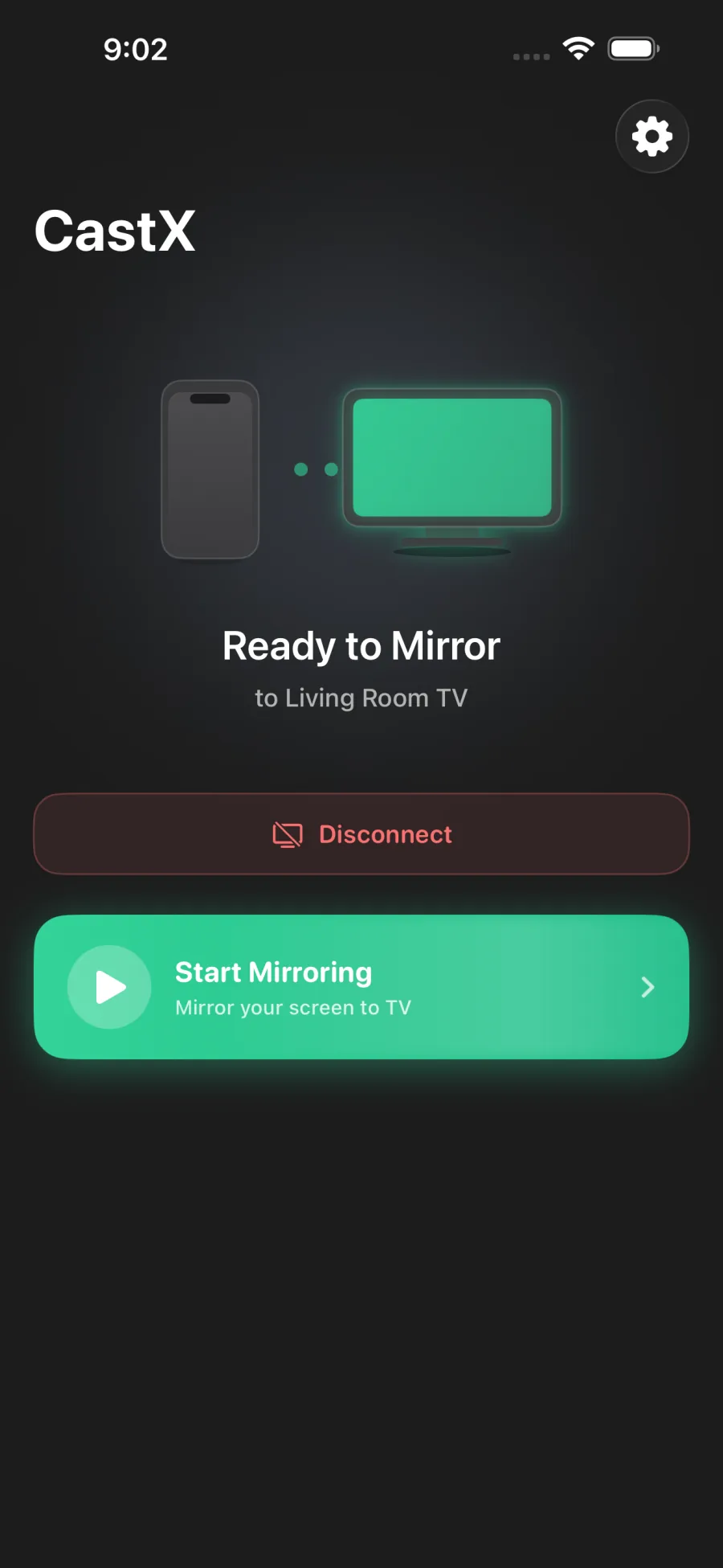
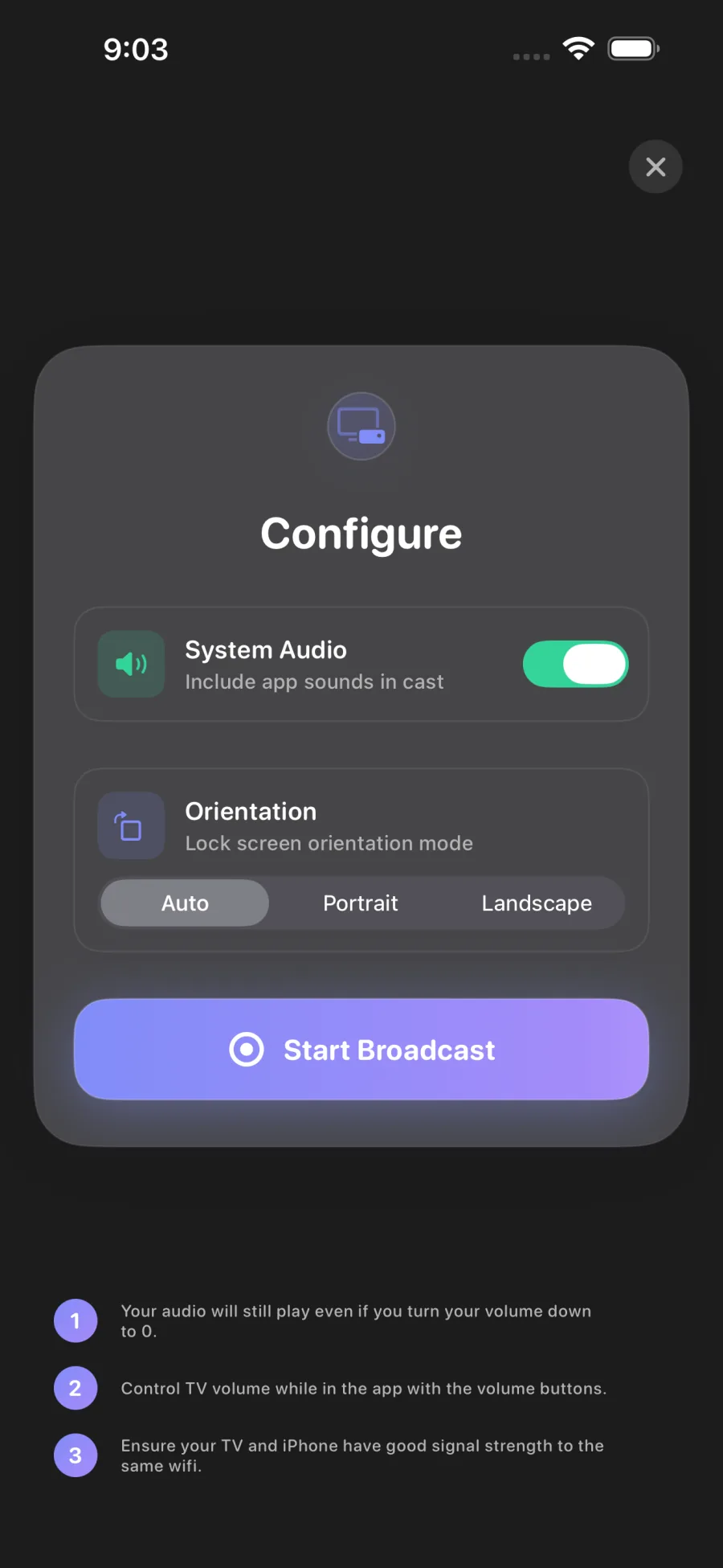
Before you start
- Your iPhone and Chromecast must use the same Wi-Fi network.
- Allow Local Network and Screen Recording access when iOS asks. Screen Recording is the system name for live screen sharing; CastX does not store the broadcast.
- Turn off a VPN temporarily if CastX cannot find the TV.
- Keep the iPhone awake while mirroring for the most reliable connection.
Screen mirroring or casting?
Mirror when you need the TV to show your whole iPhone screen, such as an app walkthrough, presentation, or live demonstration. Cast when you only want to send a supported video, photo, or file. Casting usually gives the TV direct control of playback and leaves the iPhone free for other tasks.
Fix common mirroring problems
CastX cannot find the Chromecast
Confirm that both devices are on the same Wi-Fi name, allow Local Network access in iPhone Settings, and restart the app. Guest networks and some VPNs prevent device discovery.
The screen is delayed or blurry
Move the iPhone and Chromecast closer to the router, reduce other heavy network traffic, and lower the quality setting in CastX if needed. Screen mirroring is live video, so Wi-Fi conditions affect delay and image quality.
A video shows a black screen
Some streaming services protect video with digital rights management (DRM) and block screen recording. CastX cannot bypass those restrictions. Use the service’s built-in Cast button when it provides one.
There is no sound
Check the TV volume and the selected audio route. Some apps restrict audio during iOS Screen Broadcast; use direct casting for supported media when possible.
Privacy
CastX works on your local network and does not need access to the content you mirror. iOS shows the broadcast indicator while screen sharing is active so you can see when it is running.
Try Mirroring for Chromecast: CastX
The CastX subscription includes both the mirroring and media-casting apps, so you can switch methods when the content calls for it.