
CastX guide
How to Cast from iPhone to Chromecast
Cast supported web videos, photos, saved videos, local files, and direct links from your iPhone to Chromecast with CastX.
Reviewed September 26, 2026
Quick answer
Use a video app’s built-in Cast button when it has one. For supported web videos, photos, saved videos, local files, and direct links, connect Chromecast Video Cast: CastX to the same Wi-Fi network and send the selected media to your TV.
Step by step
Try the app’s Cast button first
If the video app already shows the Cast icon, use it. Native casting is usually the fastest route because the service sends the video directly to Chromecast.
Connect CastX to your Chromecast
Put the iPhone and Chromecast on the same Wi-Fi, open Chromecast Video Cast: CastX, allow Local Network access, and select the TV.
Choose what to send
Open a supported web video, photo, saved video, local file, or direct media link in CastX. Select the item you want on the TV.
Start and control playback
Tap the casting control, choose the connected Chromecast, then use CastX to play, pause, seek, or stop the media.
What you will see in CastX
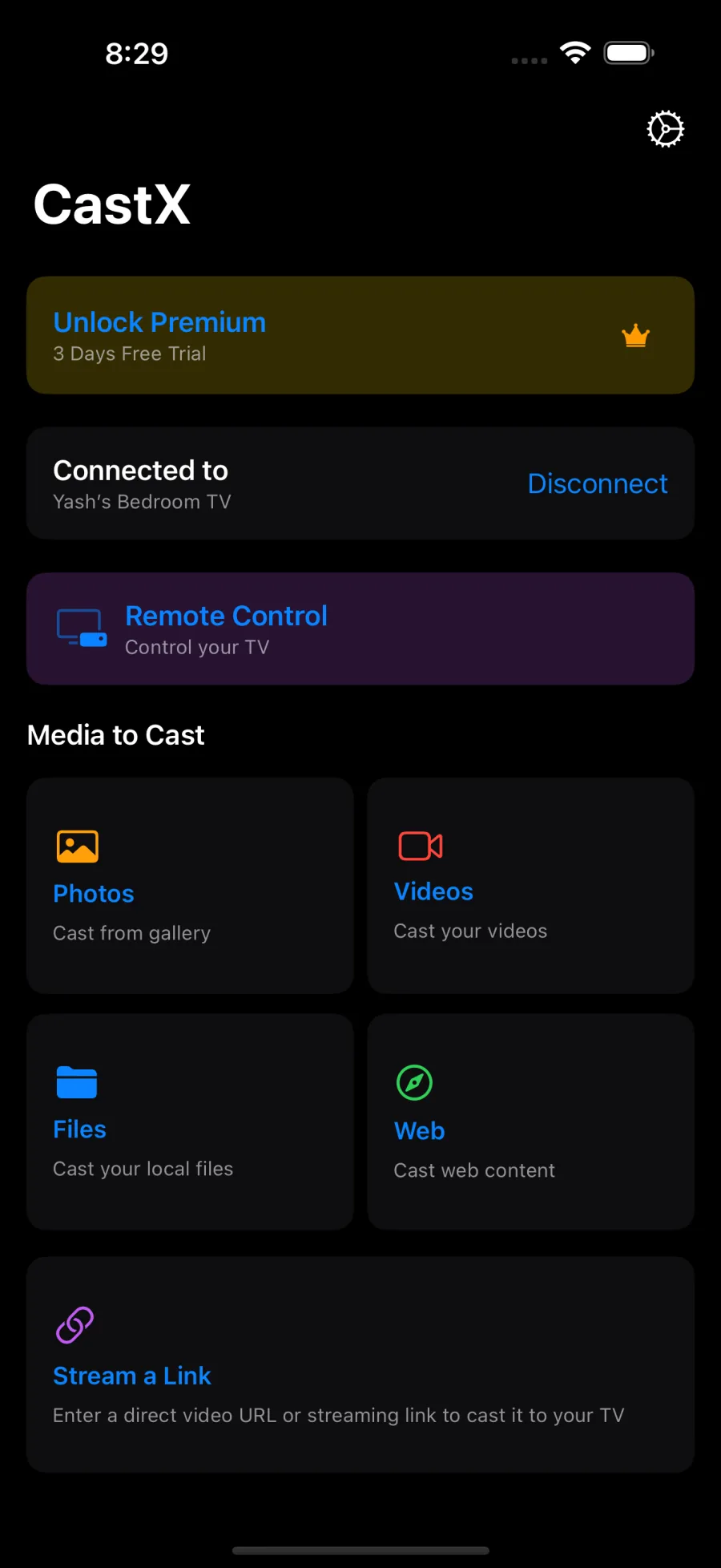
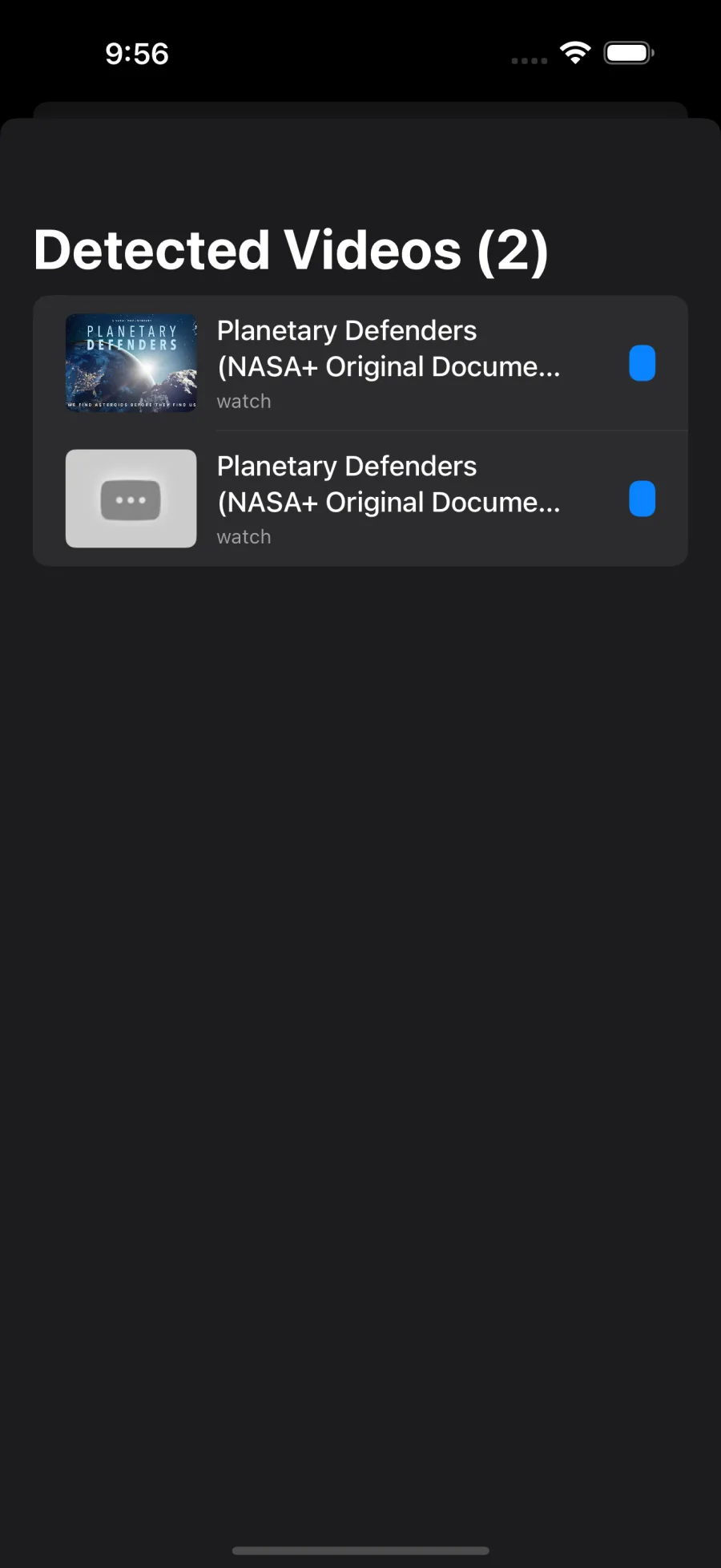
Which casting method should you use?
- Built-in Cast button: best for services that officially support Chromecast.
- CastX media casting: best for supported web videos, photos, saved videos, local files, and direct media links.
- Screen mirroring: best when you need to show an app or the entire iPhone screen rather than one media item.
Cast photos and saved videos
Choose the photo or video source in CastX, allow access to the items you want to share, select the media, and send it to the connected Chromecast. Limited Photos access works if you prefer to share only selected items with the app.
Cast a supported web video or direct link
Open the page or link inside CastX and let the app detect supported video files. Select the detected video, connect to the TV, and start playback. A web page can contain several media files, so choose the item that matches the quality and duration you expect.
Fix common casting problems
CastX cannot find the TV
Make sure the iPhone and Chromecast use the same Wi-Fi name, allow Local Network access in iPhone Settings, and disable a VPN temporarily. Guest Wi-Fi often blocks device discovery.
The video is not detected
Start playback on the page so the media request can load, then check CastX again. Some sites use formats or protected players that third-party casting apps cannot access.
Playback fails or stops
Try another available quality, keep both devices on a stable network, and confirm that the media link still works. Expiring links may need to be reopened from the source page.
A subscription video will not cast
Digital rights management (DRM) can prevent third-party playback. CastX cannot bypass content protection. Use the service’s official app and built-in Cast button when available.
Privacy
CastX connects to devices on your local network. Choose only the photos, videos, files, and links you want to send to the TV.
Try Chromecast Video Cast: CastX
The CastX subscription includes both the mirroring and media-casting apps, so you can switch methods when the content calls for it.